

Upgrading your Ubuntu system is usually a straightforward process, but when it comes to jumping from a Long Term Support (LTS) release like Ubuntu 22.04 to a newer version, say 23.10, it requires a bit of finesse. Ubuntu doesn’t allow direct upgrades between an LTS release and a non-LTS release. In this blog post, we’ll walk through the steps to successfully upgrade from 22.04 LTS to 23.10, covering potential roadblocks and solutions along the way.
Prerequisites and Initial Setup
Before diving into the upgrade process, make sure your system is up to date. Open a terminal and run:
sudo apt update && sudo apt -y upgrade
Step 1: Preparing for the Upgrade
First, you need to set your update manager to allow non-LTS upgrades. Open the release-upgrades configuration file:
sudo vim /etc/update-manager/release-upgrades
Change Prompt=lts to Prompt=normal. This ensures that your system looks for the latest release.
Step 2: Upgrading to Ubuntu 23.04
Run the following command to initiate the upgrade to 23.04:
sudo do-release-upgrade -d
As the current Ubuntu 23.10 is considered a “developer” release, simply using do-release-upgrade will tell you there are no available upgrades. To bypass this, use the -d flag.
This will (disappointingly) not only take a long time, but also will not run unattended: at various points in the process you’ll just have to “nudge” Ubuntu along agreeing to whatever it wants you to agree to (typing a y at the prompt).
I found the whole process understandable (I guess they didn’t want to just “nuke” changes that one may have made and then forgotten about), but pedantic and a bit too much CYA from Ubuntu – definitely compared to MacOS upgrades it is a lot more “needy.”
For reasons that are still unclear to me, the first upgrade failed, which required a bit more fiddling.
If you do encounter issues too, check the upgrade logs:
xdg-open /var/log/dist-upgrade/main.log
xdg-open /var/log/dist-upgrade/apt.log
they may not entirely tell you the story of what went wrong, but will definitely provide clues as to what is blocking progress.
In my case, baffingly, it was nautilus which I just removed (I was doing a system upgrade anyway, so… whatever):
sudo apt remove nautilus
Step 3: Resolving Upgrade Issues
Once the first upgrade process is complete, you will need to complete a software update (or Ubuntu will refuse to upgrade further):
sudo apt update && sudo apt -y upgrade
At this step, you might face issues with the dreaded packages being “kept back.”
On a personal note, even after more than 12 years of using Ubuntu on a daily basis, I continue to NOT understand this “kept back” nonsense; mostly as “computer says no” and doesn’t provide any actionable way forward.
Also, over the same 12 years, I have always bulldozed my way through, and never had any trouble worth mentioning (or even at all); I just wish Ubuntu had a “yeah, I don’t give a flying f-k” flag for that and move on.
Be that as it may, if the usual sudo apt dist-upgrade command won’t work, consider this workaround:
- Identify the packages kept back.
- Manually force-install them:
sudo apt install --only-upgrade -y ubuntu-release-upgrader-core ubuntu-release-upgrader-gtk ...
Step 4: Finalizing the Upgrade
After successfully upgrading to Ubuntu 23.04, ensure all packages are updated and perform cleanup:
sudo apt autoclean
At this point, your system is on Ubuntu 23.04. Verify the version:
lsb_release -a
Step 5: Rinse & Repeat
So far, you’ve only done the first leg – it’s now time to complete the second leg of the journey:
sudo do-dist-upgrade -d
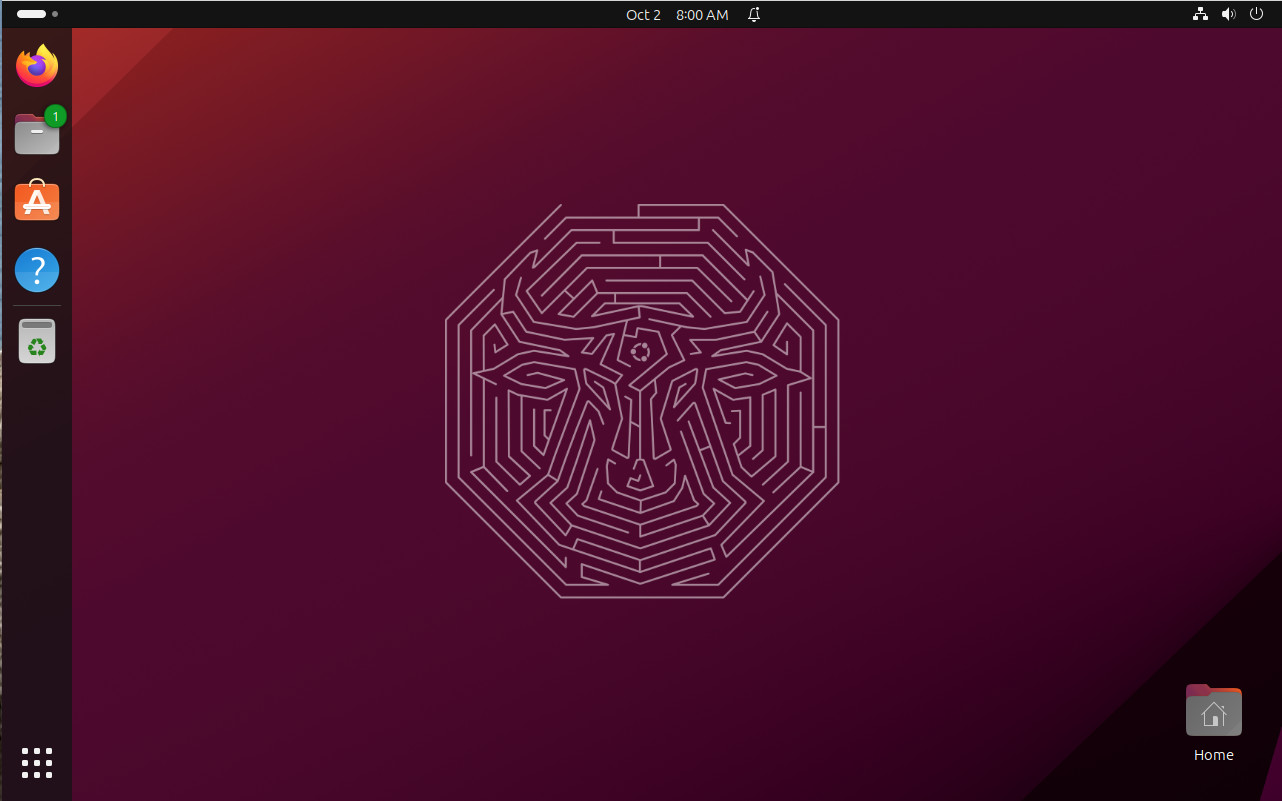
again, babysit Ubuntu through the process, hit y at the appropriate times and wait until the final reboot to get yourself a shiny, spanking bright new Ubuntu 23.10 Mantic Minotaur:
Step 6: Addressing Compatibility Issues
Some packages might not work as expected on the new release. For instance, virtualenvwrapper will need to be reinstalled.
The “old way” to install Python packages at system level (for those very rare instances where using virtualenvs won’t work – virtualenvwrapper and pip being the only cases I’ve every encountered) was to do some variant of:
sudo -H pip install virtualenvwrapper
This will not work due to Python being now (apparently) externally managed – whatever that means.
Instead, use:
sudo apt install -y python3-virtualenvwrapper
Additionally, if you face problems related to missing FUSE when running utilities, install the necessary library:
sudo apt install libfuse2
Conclusion
Upgrading Ubuntu from an LTS release to a non-LTS release involves a series of steps and potential hurdles. By following this guide and addressing the issues along the way, you can successfully upgrade your system to Ubuntu 23.10, enabling you to benefit from the latest features and improvements.
I have now been using it for around a week or so, and most of the tools (IDEs, terminal, browser, file utilities) all seem to work just fine, so far, so good.
Remember, always back up your important data before performing any system upgrade to prevent data loss. Happy upgrading!



 Code Trips & Tips
Leave a comment